ADMS
Module: adms, the Asset Document Management System. A second document register, built in 2023, that files documents against a hierarchy of assets (plant, unit, equipment) instead of against a project's MDR. It has its own reference screens (adms_reference), its own tables and its own check-out and check-in flow. It is fully on $pdo.
How this page was verified
Written from master on 2026-09-06 and compared with the big five the same day. The screen sections were rewritten on 2026-09-07 with the screens opened on inact-jadestone.eris.place (Jadestone production snapshot, project AKT, the INACT super-admin). 12 module files and 10 reference files, about 210 database calls, none on the legacy helper.
Where it sits
Asset levels (ts_assets: label, is_relation)  →  asset values (ts_detail_asset, ts_map_asset_detail)
        ↓ tagging (ts_da_tagging)
Document master (ts_docassets_master)  →  revisions (ts_documents_asset)  →  files (ts_map_file_asset)
        ↓                                        ↓
related documents (ts_da_related)        activity log (ts_docasset_activity): check-out, check-in
The asset hierarchy is not fixed: ts_assets defines the levels and their labels, is_relation says whether a level depends on the one above it, and ts_detail_asset holds the values. A document is tagged to one value per level.
The data
| Table | Holds |
|---|---|
ts_docassets_master | one row per document: number, title, da_project, da_doc_owner, da_doc_originator, docdiscp_code, drawing_category_code, da_doc_date, da_doc_rev_date, da_docrurr_status (current status) |
ts_documents_asset | one row per revision, with rev_sort (added 2026-08) and the native file name (ts_nativefilename_adms) |
ts_da_tagging | document ↔ asset values |
ts_da_related | document ↔ related document |
ts_docasset_activity | who checked a document out or in and when |
ts_adms_doctype, ts_adms_subtype, ts_adms_drawing_category, ts_adms_issued_status, ts_adms_result_code, ts_adms_projects, ts_assetdocdiscipline | the ADMS reference lists, separate from the DMS ones |
The screen
adms.php renders adms_browse.htm. Unlike the other DMS modules it does not open on a grid: it opens on ADMS Home, a column browser over the asset levels, and the document grid is a second layer reached from it.
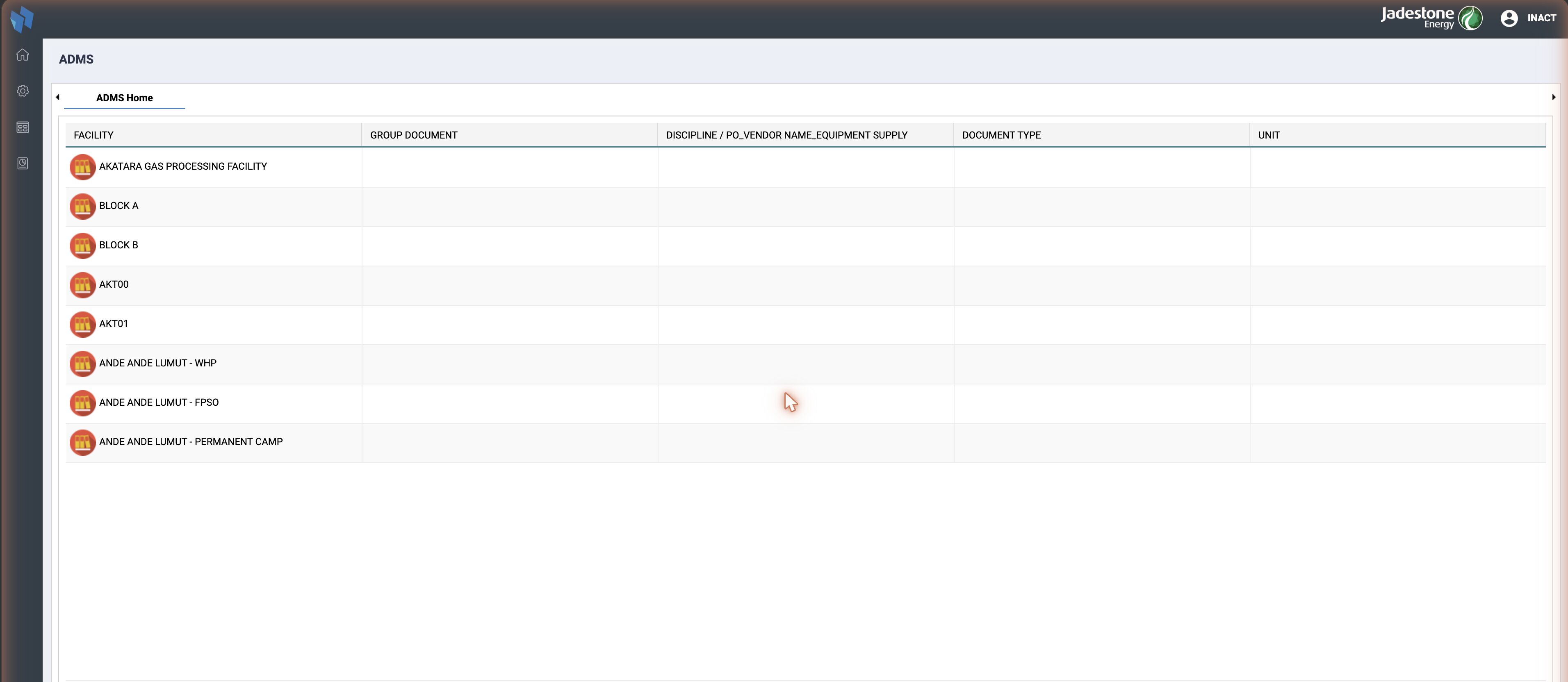
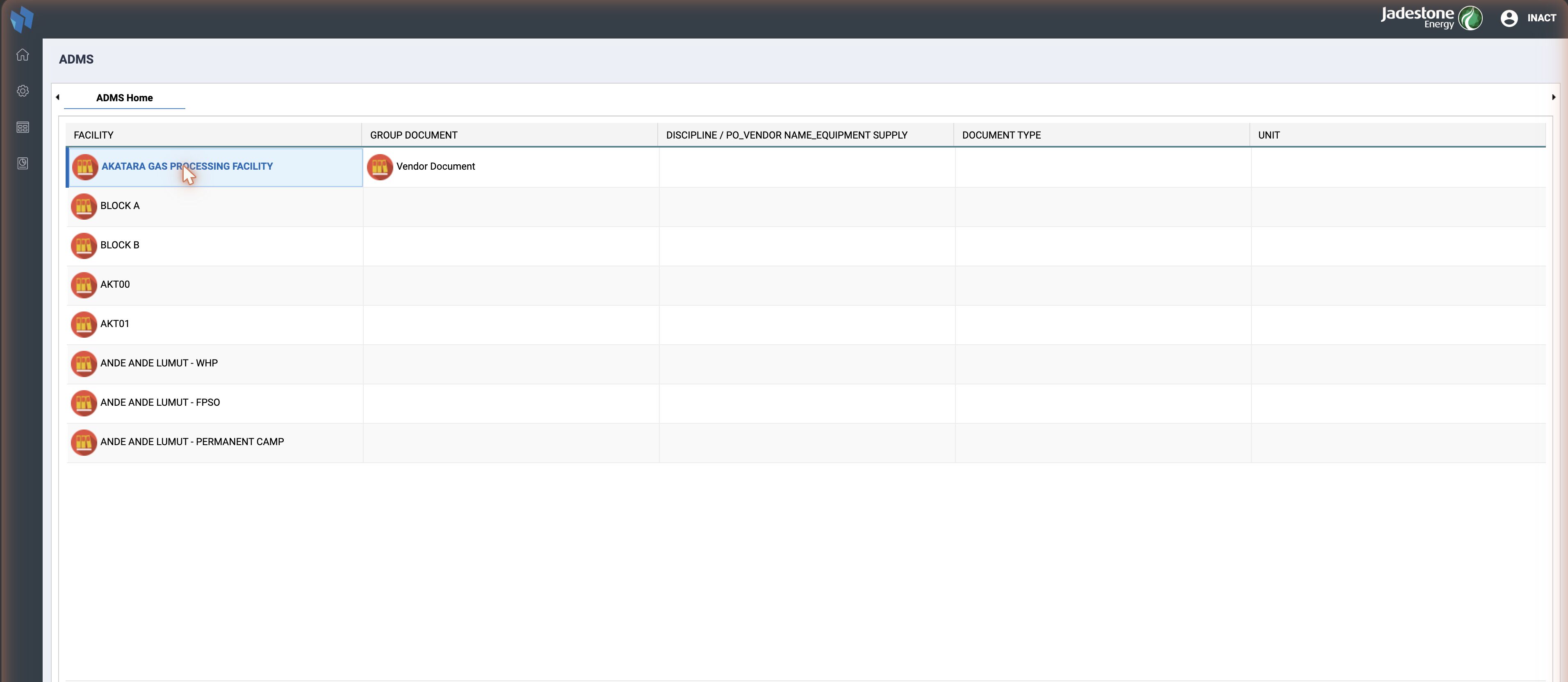
ADMS Home
One column per row of ts_assets, in level_asset order; the column headers are the labels (label_asset), which is why Jadestone reads FACILITY, GROUP DOCUMENT, DISCIPLINE / PO_VENDOR NAME_EQUIPMENT SUPPLY, DOCUMENT TYPE, UNIT and another instance reads something else. Each column lists the values of that level (ts_detail_asset), with their icon. Clicking a value fills the next column with the values that are related to it (ts_map_asset_detail, honoured when the level has is_relation = 1). Three buttons close the page:
| Button | What it does |
|---|---|
| Submit | opens the document grid for the values selected in the columns |
| Show All | opens the document grid for the whole project |
| Search | opens the Search Data dialog straight from the home page |
The document grid
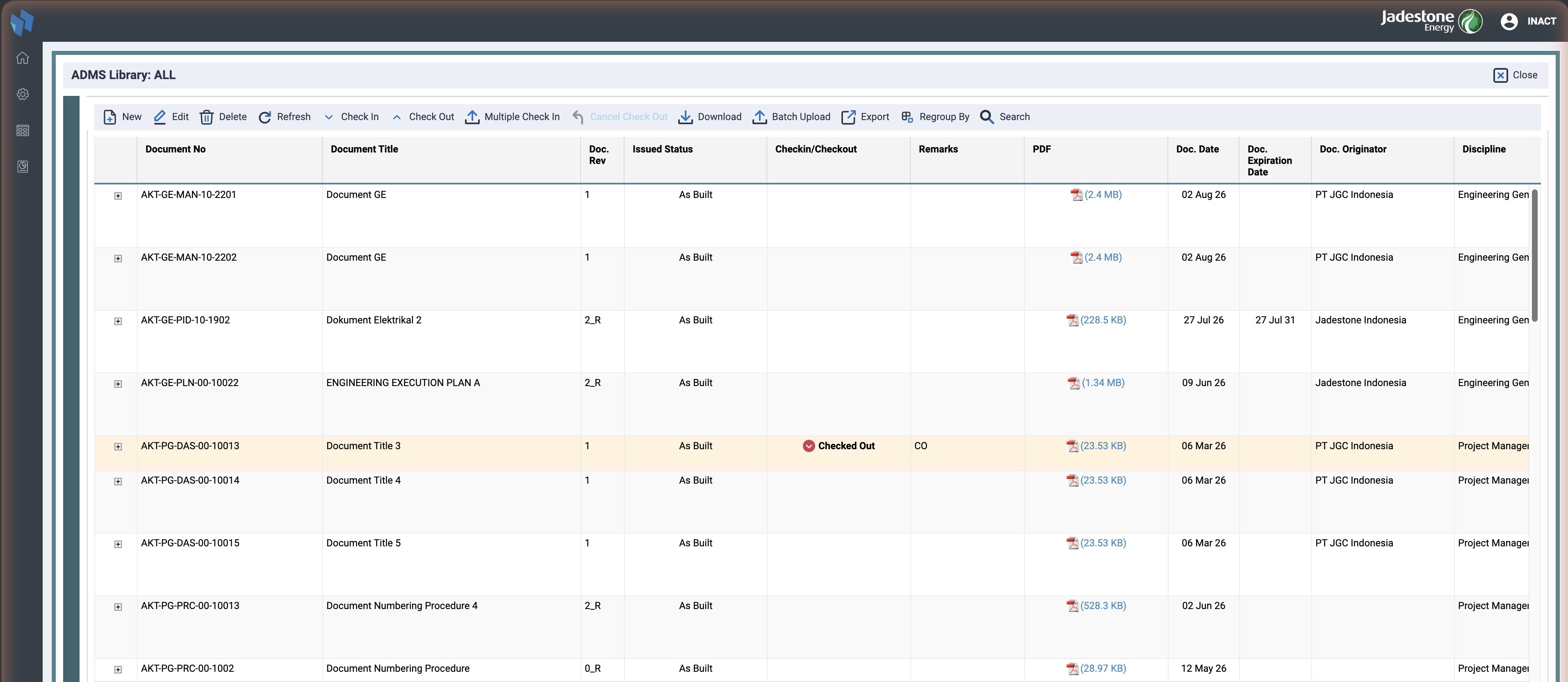
show=documents lists ts_docassets_master rows, one per document number with its latest revision from ts_documents_asset. The + opens the revision sub-grid (adms_subgrid.inc.php, ordered by rev_sort), with the same columns per revision plus the native file.
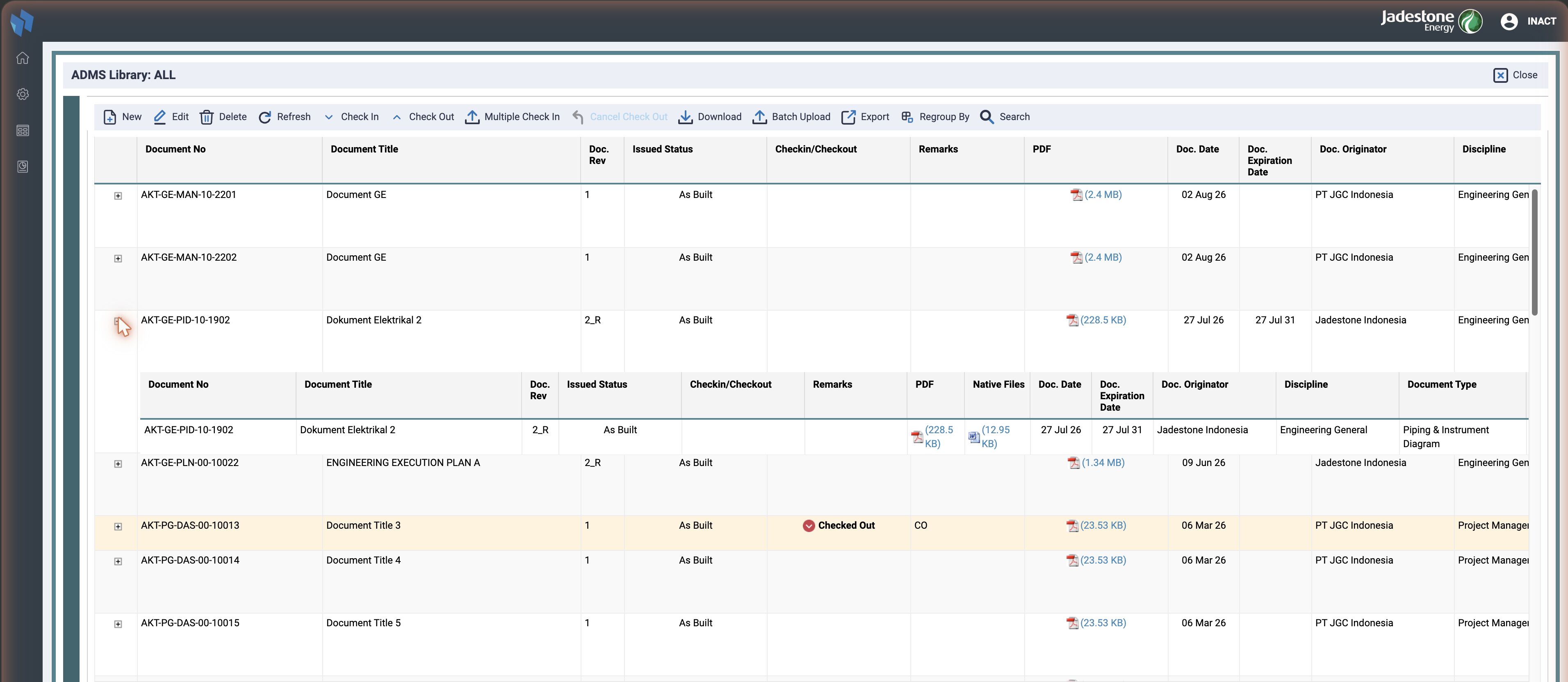
Columns, from adms.inc.php: Document No, Document Title, Doc. Rev, Issued Status, Checkin/Checkout, Remarks, PDF File, Native Files, Doc. Date, Doc. Expiration Date, Doc. Originator, Discipline, Doc. Type, Unit Code (Jadestone), Sub Type. The Checkin/Checkout cell shows Checked Out while someone holds the document, and Remarks carries the check-out note.
| Button | Handler | What it does |
|---|---|---|
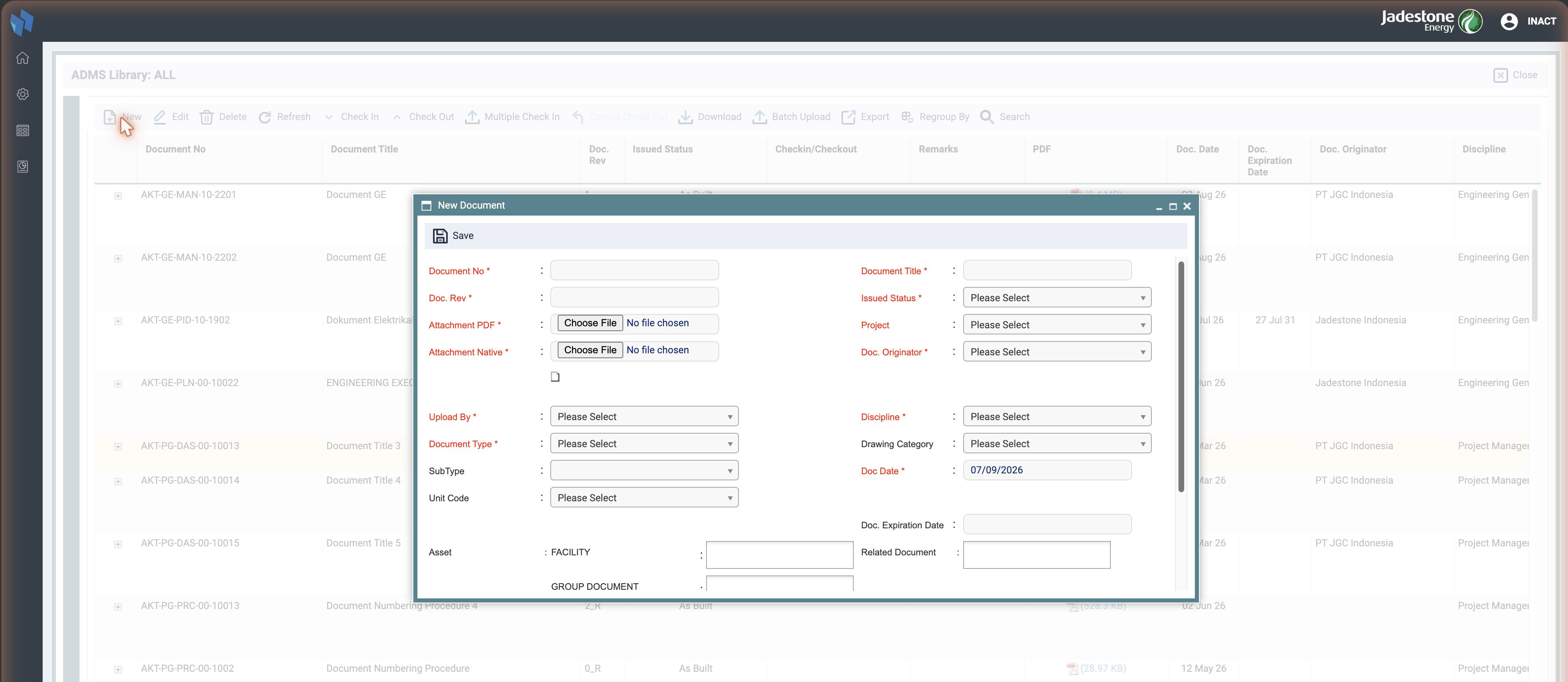
| New | cmd=add, act=add | the New Document dialog: number, revision, PDF and native attachments, title, issued status, project, originator, discipline, document type, drawing category, sub type, unit code, dates, related documents, and one value per asset level |
| Edit | cmd=edit, act=edit | the same dialog for the selected document; editallrevision applies the metadata to every revision |
| Delete | cmd=deleteDocMaster | after isPersonAllowedToDelete |
| Refresh | ||
| Check In, Check Out, Multiple Check In, Cancel Check Out | act=checkin, checkout, cancelCO | see below |
| Download | cmd=downloadAttachment, downloadPdfFile, batchdownload | the file, the PDF with the watermark when checkSettingWatermark says so, or a zip of the selected documents |
| Batch Upload | cmd=uploadmetaform | the metadata import, see below |
| Export | export_csv_act | the grid as CSV |
| Regroup By | group the grid by a column | |
| Search | cmd=search | the Search Data dialog |
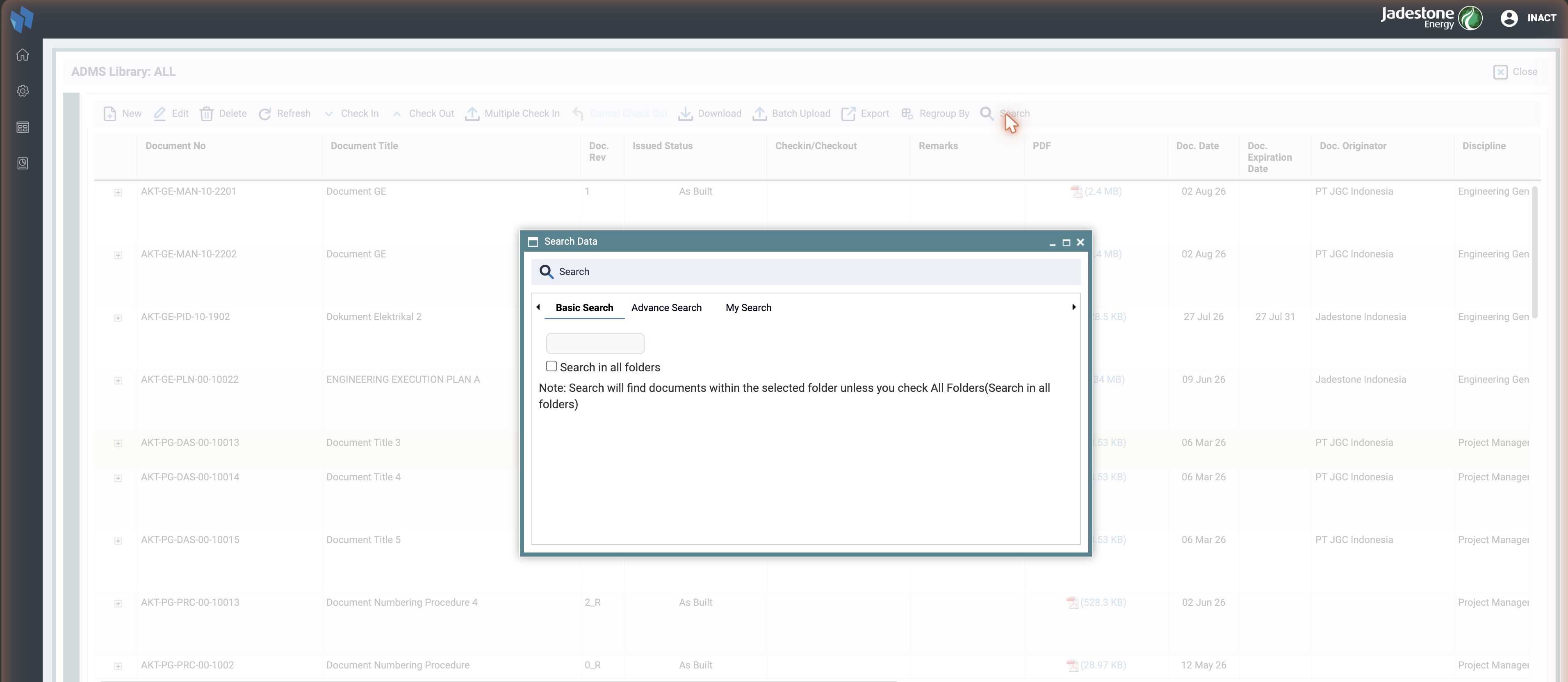
Search has three tabs: Basic (number and title, in the selected folder or all), Advance (field / operator / value rows, with between, and a sort), and My Search, saved searches per person in ts_search_pattern with a name, creator and action.
Import by metadata
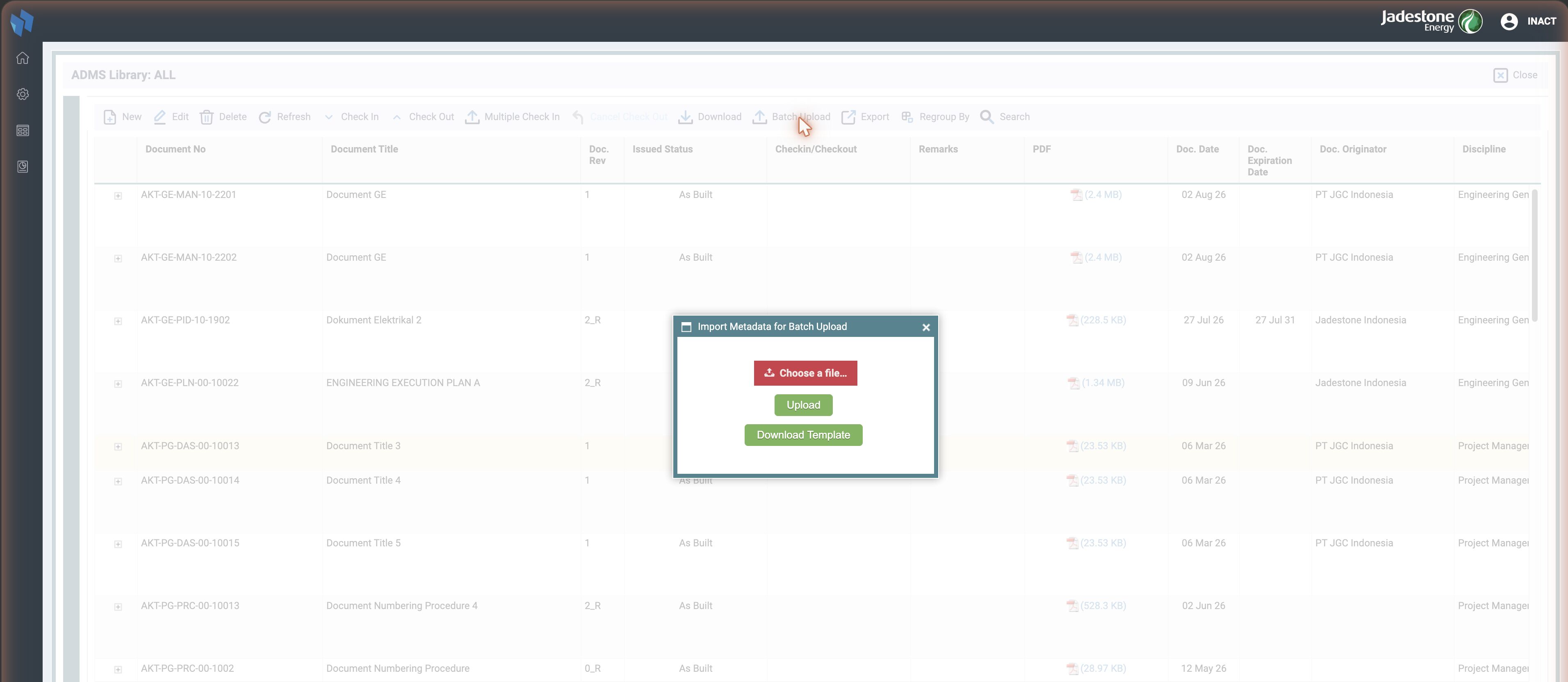
The Batch Upload button starts the Excel-first flow: download the template (getTemplateAdmsBatch), fill one row per document, upload it (uploadmetaprocess). The rows land in temporary storage with a temp_id on ts_docassets_master and are shown on a review page (temporarymetadatalist, temporaryconfirmpage) where duplicates (checktempduplicatedocnumber) and unknown level values (checkislevellabel) are flagged. Confirm (proceedsavetempdatatodocuments) turns them into documents, and the files are then uploaded against those rows (multiuploadafterimportmetadata). cleartemporaryexceldata throws the batch away. The same flow with temporarymetadatalistmultipleci is what Multiple Check In uses.
Check-out and check-in
checkout marks the document as taken by the current person, writes a ts_docasset_activity row and shows Checked Out in the grid; checkin uploads the new revision (uploadmetaformedit for the metadata, then the file) and releases it; cancelCO releases it without a revision. Only the person who checked out, or an admin, can check in (isPersonAllowedToCheckinCheckout); isAllowedCheckInDoc refuses a check-in on a document that is not checked out. The adms_checkout and adms_download privilege codes gate the buttons.
Settings
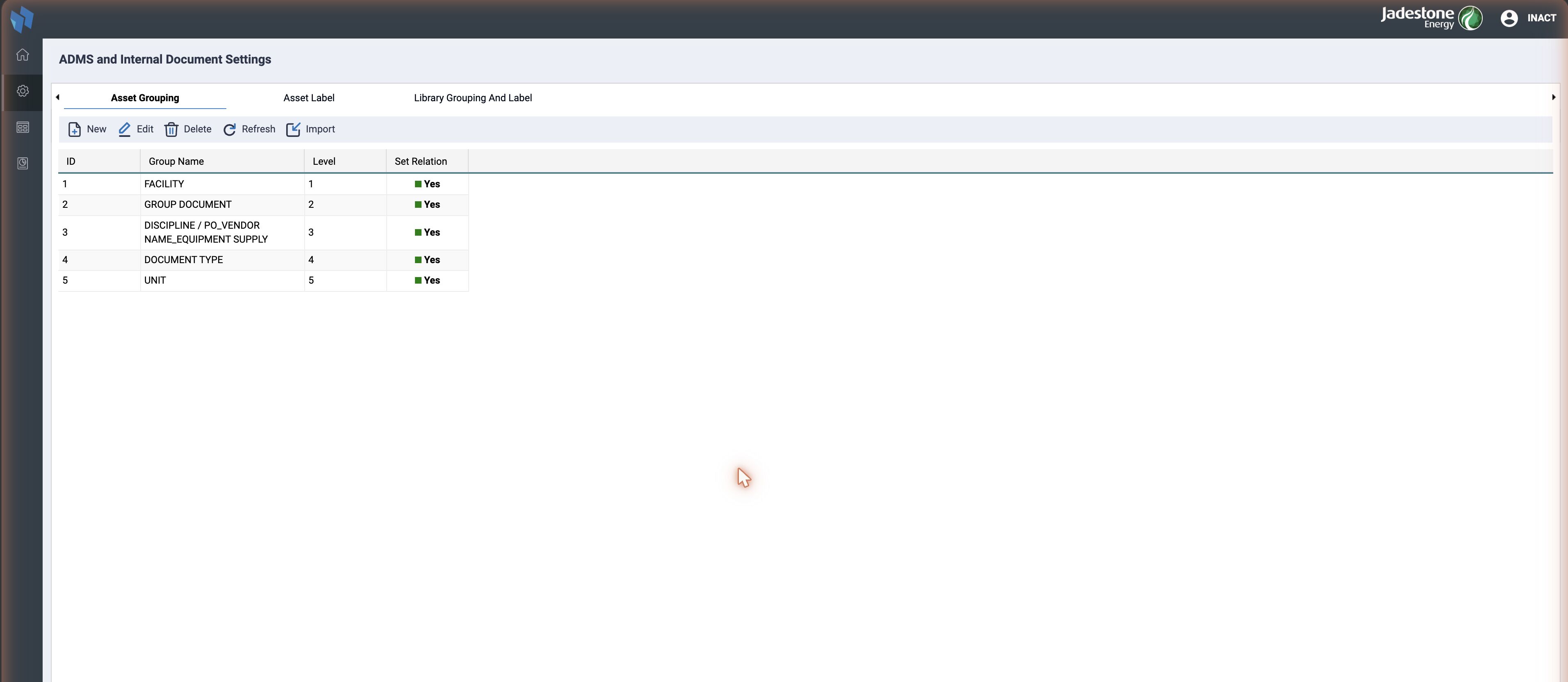
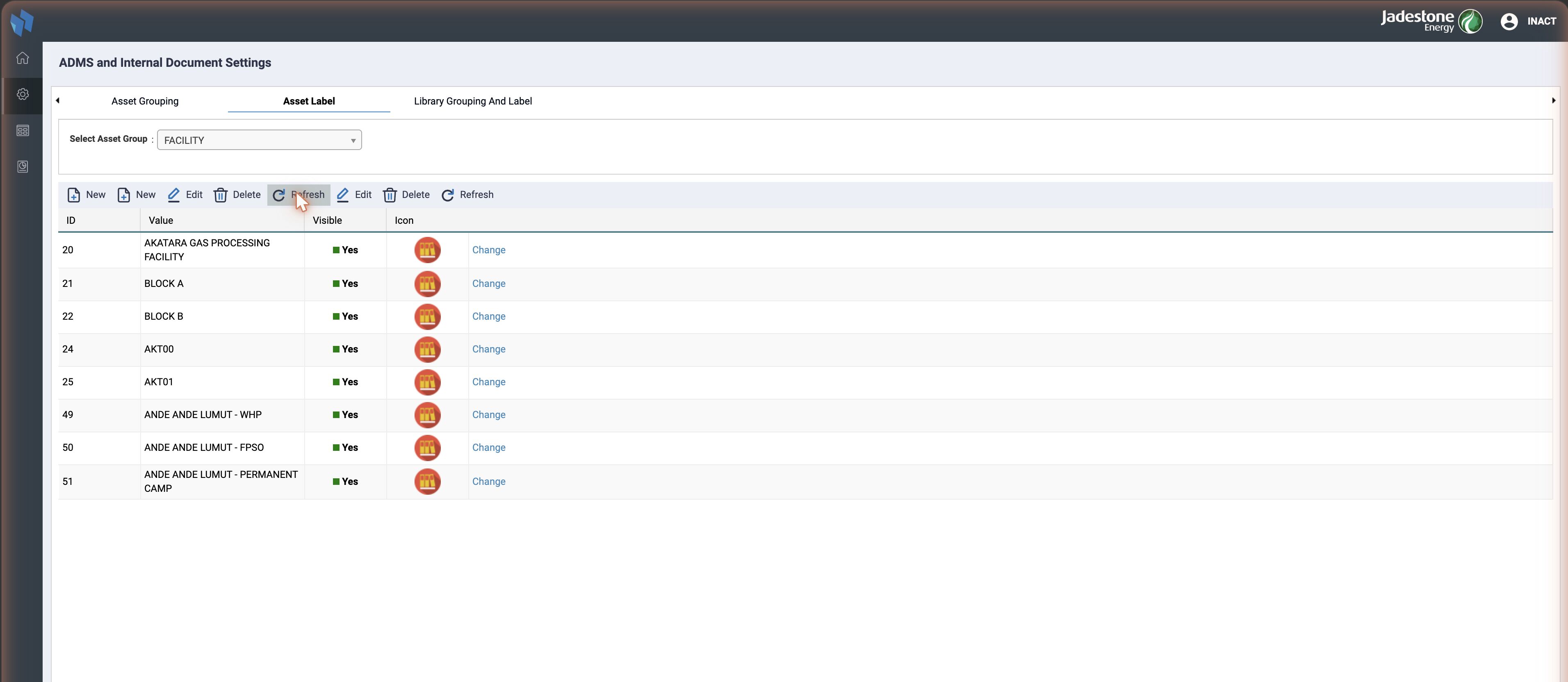
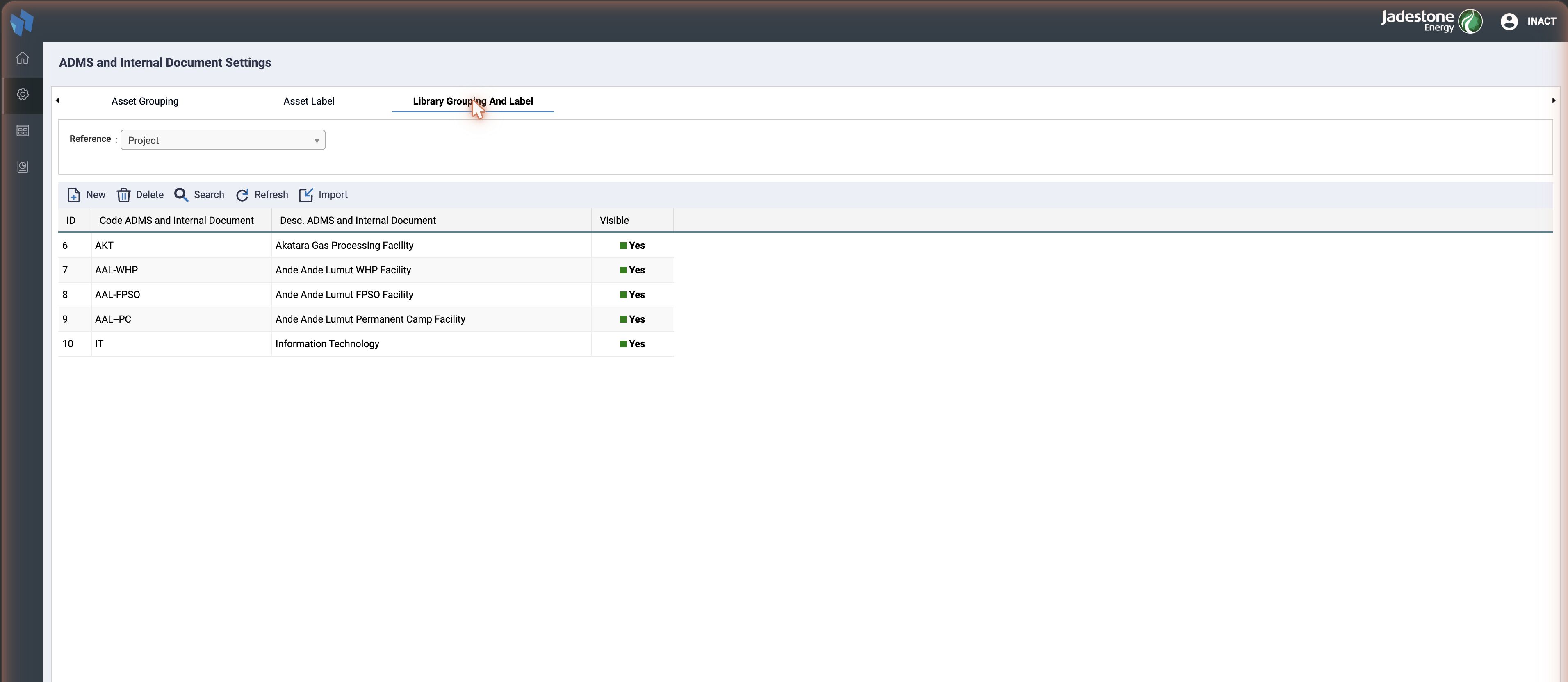
The ADMS entry under Setting opens adms_reference.php, titled ADMS and Internal Document Settings, with a warning on entry that deleting or changing a record can break the link of documents already uploaded. Three tabs:
| Tab | Table | What it edits |
|---|---|---|
| Asset Grouping | ts_assets | one row per level: Group Name (label_asset), Level (level_asset, assigned as the next free number), Set Relation (is_relation). New, Edit, Delete, Refresh and an Excel Import |
| Asset Label | ts_detail_asset, ts_map_asset_detail | pick a level, then its values: Value (desc_detail_asset), code, Visible (is_visible), Icon (imgpath, uploaded to image/adms_icons/) and, for related levels, the parent value |
| Library Grouping And Label | ts_adms_projects, ts_assetdocdiscipline, ts_adms_doctype, ts_adms_subtype, ts_adms_drawing_category, ts_adms_issued_status and Jadestone's ts_adms_unit_code | pick a Reference, then a code / description / visible grid with New, Delete, Search, Refresh and Import (adms_reference_import.inc.php) |
Gotchas
- Level labels are data. A screen that shows "Unit" or "Area" reads it from
ts_assets; two instances can show different labels for the same level number. - The DMS and ADMS reference lists are separate tables. Adding a document type in DMS settings does not make it available here.
- Check-out has no timeout. A document stays locked until someone checks it in or cancels.
Instance differences
The enabled state below was read from each instance's local dev database (production snapshot) on 2026-09-10; the file-count drift was measured against master's code on 2026-09-06. "Enabled" means the adms module is on in the menu (modules_is_installed) and, where noted, has ts_assets data. Every fork carries the ADMS code — the folder is present in all of them — so "not enabled" means the code is there but switched off.
| Instance | Difference |
|---|---|
| Jadestone | Enabled, with asset data. Nine module files and eight reference files differ; a adms_unit_code reference screen was added, and a Unit level plus a watermark on download are wired through the form and the upload flow. On the 2026-09-07 snapshot the adms browse row is flagged off while ADMS Settings and the asset data are present, so only Settings shows in the menu — a data slip to confirm on the live instance. |
| Medco | Enabled (adms is on in the menu). Eight module files differ, the 2024 to 2026 drift, not client work. No asset rows yet. |
| Tomori | Enabled, with asset data. Tomori is the ADMS implementation itself; the ADMS work had its own one-time space INA34, but Tomori's project is INA12. Nine module files differ. |
| Timas, KTP, JOTRE, Prima Energy | ADMS code is present (8 to 10 files differ, drift) but not enabled: the module is off in the menu and there is no asset data. |
Related
- Document Library: the project-based register.
- DMS settings: the DMS reference lists, for contrast.
- Users and Privileges.